> For the complete documentation index, see [llms.txt](https://docs.spacetree.org/spacetree/llms.txt). Markdown versions of documentation pages are available by appending `.md` to page URLs; this page is available as [Markdown](https://docs.spacetree.org/spacetree/getting-started/adding-your-domain.md).
# Adding your Domain
After selecting and purchasing your plan, the next step involves adding your domain (your unique website address) to the ProQyz system and obtaining a license key. This process ensures that your domain is recognised by ProQyz, and your plugin is licensed for use.
**Adding Your Domain to ProQyz**
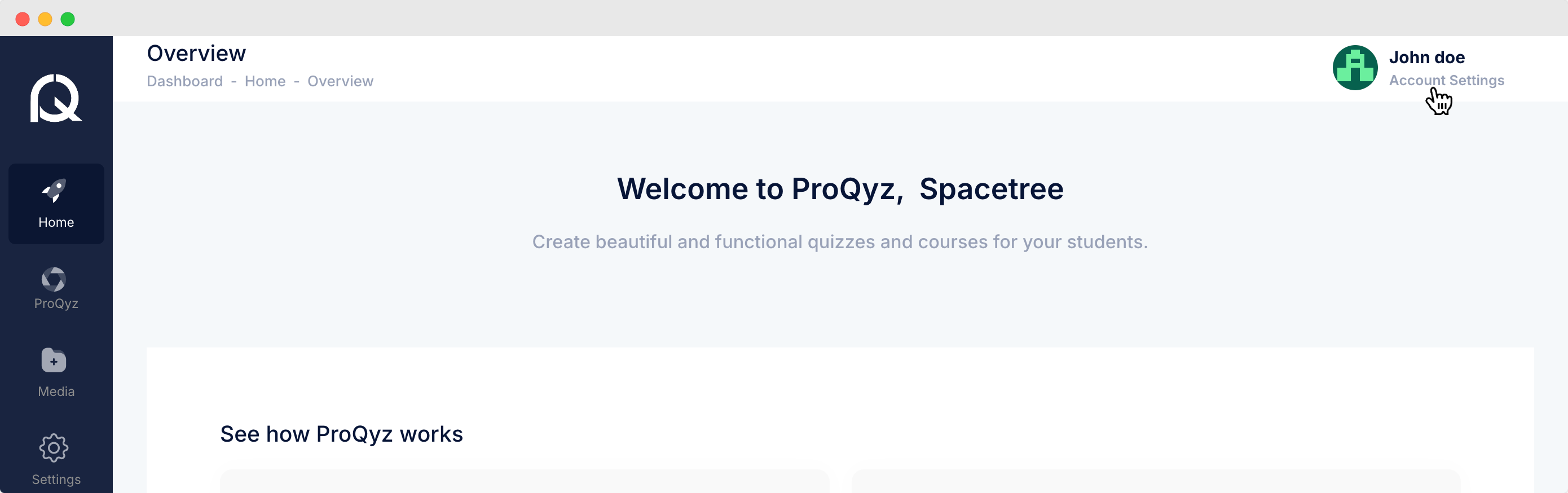
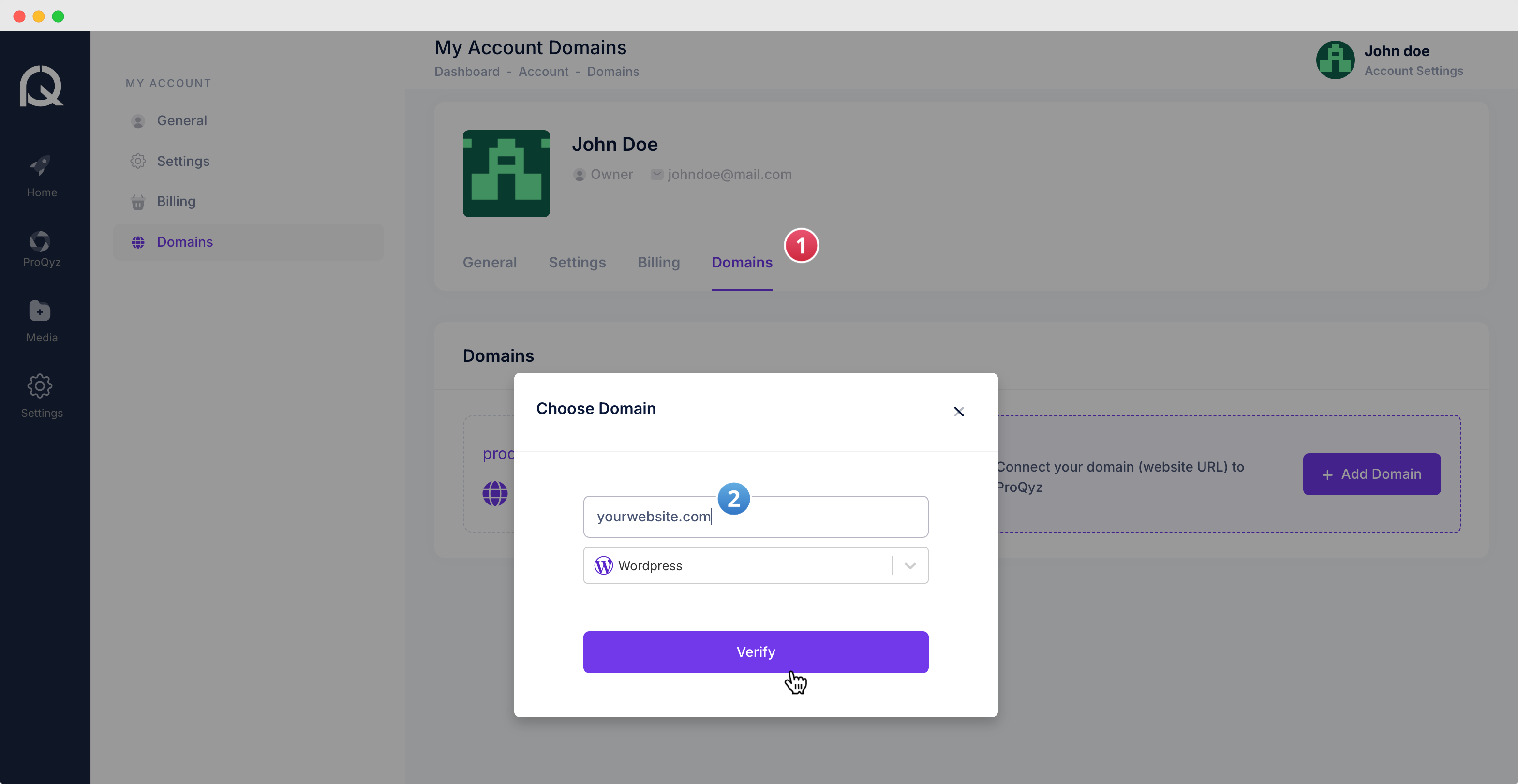
1. **Access the Domain Section**: From the profile menu on your dashboard, click on 'Domains' under the 'My Account' section.
1. **Add a New Domain**: Click the '+ Add Domain' button.
* In the 'Choose Domain' popup, enter your domain name.
* Select 'Wordpress' from the platform dropdown menu.
* Click 'Verify' to confirm your domain ownership.
**Connect Your Domain**
1. **Start the Connection Process**: Click on the 'Add domain' button.
2. **Enter Domain Details**: A step-by-step guide will appear:
* Download and install the ProQyz WordPress plugin.
* Copy the unique site token from the ProQyz domain section.
* Paste this unique site token into the appropriate field on the WordPress plugin settings page.
* Click 'Check connectivity' to ensure that your domain is correctly linked to ProQyz.
3. **Complete the Configuration**: Follow the additional configuration steps, which may include:
* Configuring and saving your domain settings.
* Adding a license if you have multiple licenses or manage multiple domains.
{% embed url="" %}
**Change Your Domain**
1. **Access Account Settings**: Navigate to `Account Settings > Domains > Edit License`.
2. **Delete Current License Key**: Delete the existing license key by clicking on the delete icon.
3. **Add a New Domain**: Go back to `Domains` and choose `Add New Domain`.
4. **Select a Plan**: Select your plan for your new domain.
5. **Generate a New License Key**: Obtain the key for the newly selected plan and add it in your Wordpress website.
By completing these steps, your domain will be connected, and the ProQyz plugin will be fully operational on your WordPress site. If you encounter any issues during this process, please refer to the support documentation or contact ProQyz customer support for further assistance.